
“NordVPN Not Connecting on Windows 10/11?”
Are you experiencing issues with NordVPN not connecting on Windows 10/11?
NordVPN is a VPN service that encrypts your internet connection, making it useful for safely using public Wi-Fi and changing your IP address to bypass geo-restrictions for accessing overseas content.
In this article, we will explain the causes and solutions for NordVPN connection issues on Windows 10/11.
目次
Causes and Solutions for NordVPN Not Connecting on Windows 10/11
Let’s dive into the possible causes and solutions when NordVPN is not connecting on Windows 10/11.
Some common reasons that apply to all devices include:
- NordVPN subscription has expired
- Unstable internet connection
- VPN server issues or maintenance
- Outdated NordVPN app version
- Required VPN ports are blocked
- Interference from security software (antivirus/firewall)
For more details, check out the following guide.
If you are using Windows 10/11, in addition to the above reasons, check the following solutions as well.
Change the VPN Protocol
In some cases, NordVPN may not connect due to the selected VPN protocol.
Try changing the VPN protocol in the NordVPN settings to “OpenVPN (TCP)” and see if the connection improves.
Go to the Connection Settings
Open the Windows version of the NordVPN app, then click on the gear icon in the bottom left corner, followed by “Connection.”
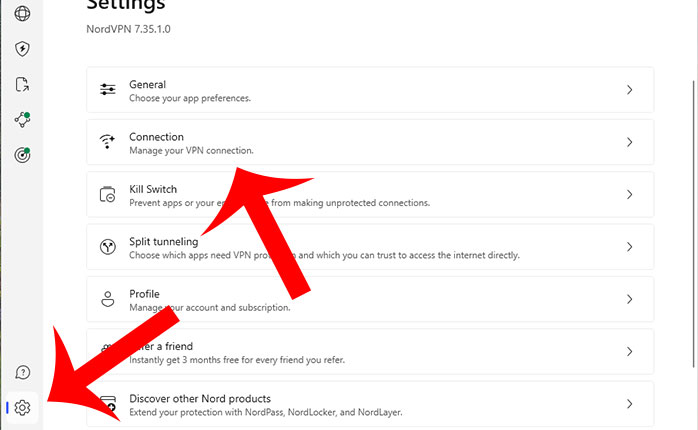
Change the VPN Protocol
Once you are in the Connection settings screen, change the VPN protocol to “OpenVPN (TCP)” to complete the process.
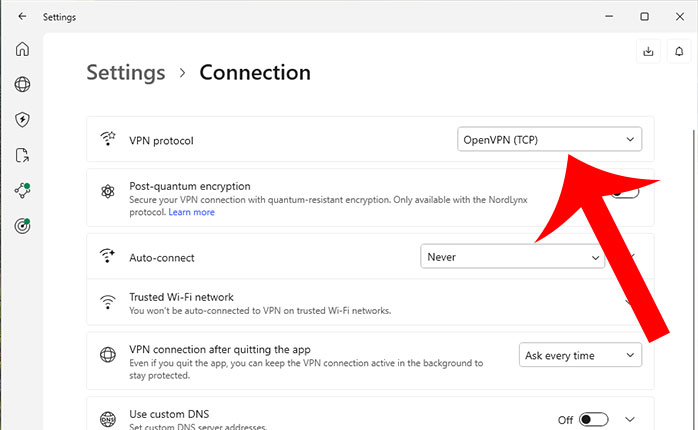
The available VPN protocols for the Windows version of NordVPN are as follows.
| NordLynx | NordVPN’s proprietary VPN protocol, NordLynx, is based on the ultra-fast WireGuard technology. It has been developed to significantly enhance stability and security while maintaining high-speed performance. |
|---|---|
| OpenVPN(UDP) | It is a widely used, license-free open-source VPN protocol designed for high-speed communication. |
| OpenVPN(TCP) | It is an open-source VPN protocol designed with a focus on reliability and stability. |
Reset the NordVPN App
Connection issues may occur due to malfunctions or glitches in the NordVPN app.
Try resetting the NordVPN app to resolve the issue.
Go to the Connection Settings
Open the Windows version of the NordVPN app, then click on the gear icon in the bottom left corner, followed by “General.”
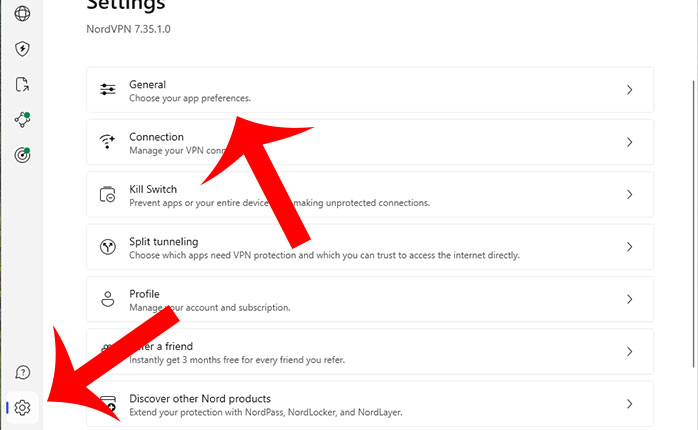
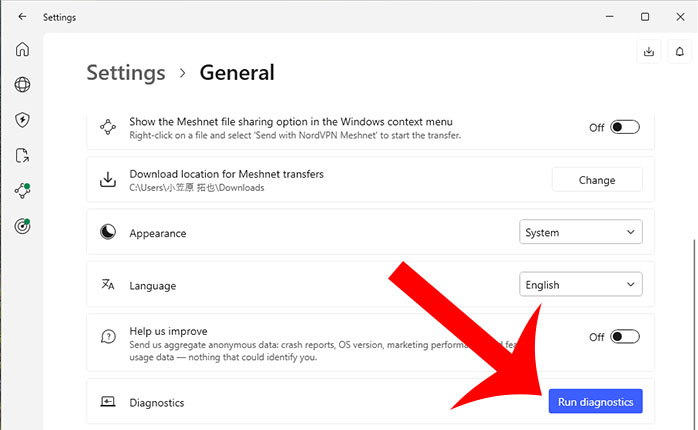
Start Diagnostics
Once you are in the General settings screen, click “Run Diagnostics.”
If a message appears asking, “Do you allow this app to make changes to your device?”, click “Yes.”
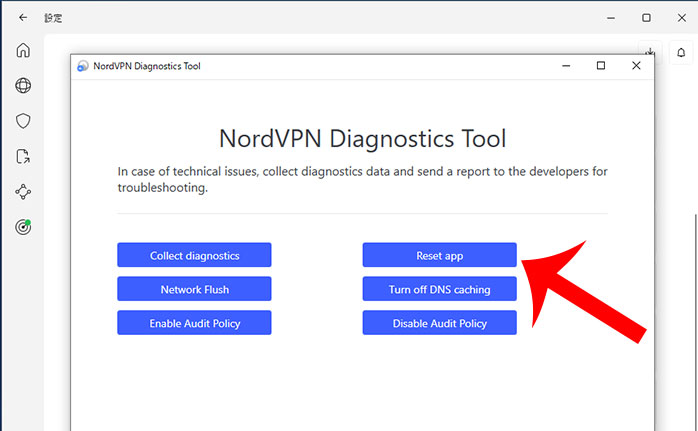
Click “Reset App”
The NordVPN Diagnostics Tool will appear.
You will see a message:
“In case of technical issues, collect diagnostics data and send a report to the developers for troubleshooting.”
Click “Reset app” to initiate the NordVPN app reset process.
Reinstall the NordVPN TAP Driver
If you see the error message “Fatal Error: Failed to block DNS,” it may indicate an issue with Windows OS, applications, or network configuration.
To fix this, try reinstalling the NordVPN TAP driver.
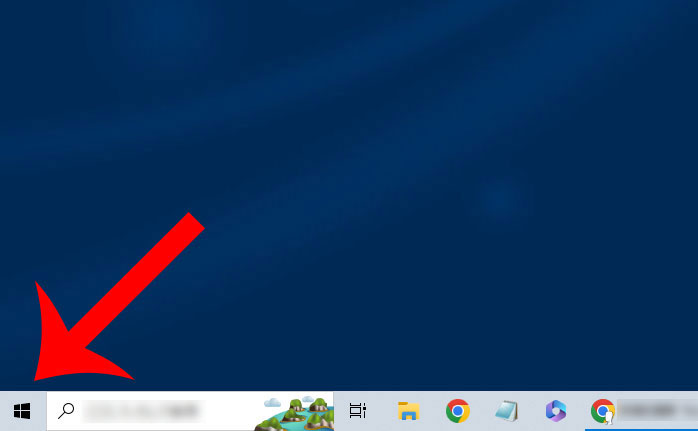
Open the Start Menu
First, click the Windows icon in the bottom left corner to open the Start Menu.
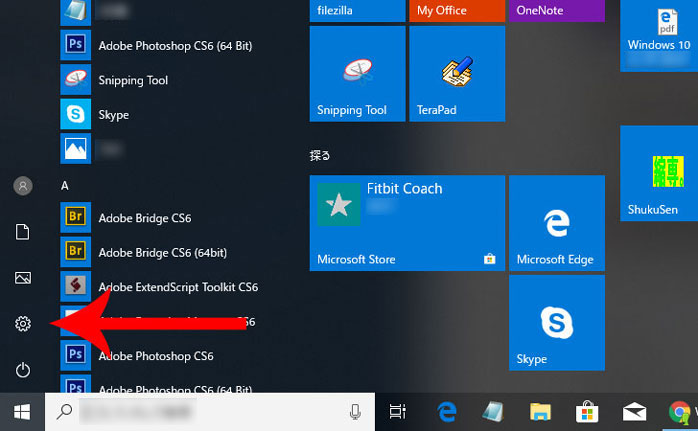
Open Windows Settings
Once the Start Menu opens, click the gear icon to access Windows Settings.
Open the App List
In Windows Settings, click on “Apps” → “Apps & features” to view the list of installed applications.
Find NordVPN
In the list of installed applications, locate “NordVPN”.
You will see options like:
- NordVPN
- NordVPN network TAP
- NordVPN network TUN
Click on “NordVPN network TAP” to proceed.
※ If NordVPN does not appear in the list, try using the search function to find it.
Uninstall the TAP Driver
Click “Uninstall” next to “NordVPN network TAP” to proceed with the uninstallation.
Download NordVPN Network TAP
Go to the NordVPN official website under the “Connection Troubleshooting on Windows” section.
Find the Windows OS Issues section and click “Download and install the TAP driver.”
Run NordVPNTapSetup.exe
Once the file “NordVPNTapSetup.exe” is downloaded, double-click it to run the installer.
This will complete the reinstallation of the NordVPN TAP driver.

For Windows 11, open the Start Menu and click “Installed apps” or “Apps & features.”
A list of installed applications will be displayed.
Find NordVPN, click the “…” (three dots) menu, then select “Uninstall” to proceed with the uninstallation.

The TAP driver is responsible for creating a virtual tunnel that allows the device to securely communicate with the VPN server.
Set the Interface Metric to 1
If the issue is not resolved after reinstalling the NordVPN TAP driver, try setting the interface metric to 1.
Open the Start Menu
First, click the Windows icon in the bottom left corner to open the Start Menu.
Open Windows Settings
Once the Start Menu opens, click the gear icon to access Windows Settings.
Open Network & Internet
In Windows Settings, click on “Network & Internet” (Wi-Fi, Airplane mode, VPN).
Open Network and Sharing Center
Click on “Network and Sharing Center” (Specify what you want to share about your network connection).
Click “Change Adapter Settings”
Once the Network and Sharing Center opens, click “Change adapter settings” from the left menu.
Click “TAP-NordVPN Windows Adapter”
A list of network connections will be displayed. Click on “TAP-NordVPN Windows Adapter …” to proceed.
Open TCP/IPv4 Properties
Select “Internet Protocol Version 4 (TCP/IPv4)”, then click “Properties.”
Open Advanced Settings
Click “Advanced settings.”
Set the Interface Metric to 1
Uncheck “Automatic metric”, then enter “1” in the Interface metric field. Click “OK” to save the changes.
The Interface Metric is a numerical value that indicates the priority of an interface when transmitting IP packets.
A smaller number means higher priority.
How to Contact NordVPN
If you have tried all the solutions above and the issue is still not resolved, you may consider contacting NordVPN support.
NordVPN offers two ways to contact customer support.
| Chat | ||
|---|---|---|
| Reception Hours | 24 hours a day, 365 days a year | 24 hours a day, 365 days a year |
| Response to Questions | Realtime | At a Later Date |
| Japanese Support Available | ◯ | ◯ |
| Attachment | Location, Files, Images | Files, Images |
If you need immediate assistance, using the chat support will allow you to receive real-time assistance.


Resetting the NordVPN app can help resolve connection issues and errors caused by settings.