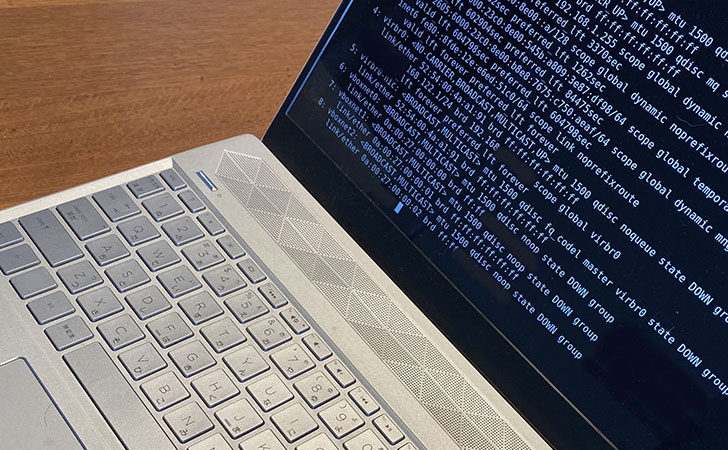
“I Subscribed to NordVPN, But I Don’t Know How to Set It Up on Linux”
Many users may find themselves in this situation.
After subscribing to NordVPN, the next step is to install the NordVPN app.
However, on Linux, installation and configuration require using the Terminal, making the process a bit more complex.
This article provides a detailed guide on how to install and use NordVPN on Linux (Ubuntu, Raspberry Pi).
目次
Getting Started with NordVPN on Linux
Now, let’s go through the steps to set up and use the NordVPN app on Linux.
The following guide applies to these Linux distributions:
- Debian
- Ubuntu
- Raspberry Pi (Raspbian OS)
- Elementary OS
- Linux Mint
You can register and subscribe to NordVPN through the NordVPN official website.
However, be aware that if you do not subscribe through the official website, you may miss out on high-discount 2-year plans and the 30-day money-back guarantee.
1. Installation Method
Here’s how to install the NordVPN app on Linux.
Open the Terminal
Search for “Terminal” in the application menu on Linux and launch it.
※ You can also open it using the shortcut Ctrl + Alt + T.
Download NordVPN
To download NordVPN on Linux, run the following command:
sh <(curl -sSf https://downloads.nordcdn.com/apps/linux/install.sh)※ If the above command does not work, try running:sh <(wget -qO – https://downloads.nordcdn.com/apps/linux/install.sh)
Install NordVPN
The NordVPN installer will run automatically.
During the installation, you will see a confirmation message:
“Is this ok y/N”
- Type “y” and press Enter to proceed.
Once the installation completes, you will see the message:
“NordVPN for Linux successfully installed! Complete!”
This confirms that the installation was successful.
2. Set Permissions
To grant NordVPN app access on Linux, you need to configure the necessary permissions.
Run the following command in the Terminal to set the permissions:
sudo usermod -aG nordvpn $USERAfter that, restart your Linux system.
If you do not grant permissions to the NordVPN app on Linux, you may encounter the following error message.
“Whoops! Permission denied accessing /run/nordvpn/nordvpnd.sock.
Run ‘usermod -aG nordvpn $USER’ to fix this issue and log out of OS afterwards for this to take an effect.”
3. Log in to NordVPN
Here’s how to log in to NordVPN on Linux.
Execute the Login Command
Run the following command to log in to NordVPN:
nordvpn loginEnter NordVPN Login Credentials
You will be prompted to enter your NordVPN email address and password.
After entering the required information, the login process will be complete.
How to Log Out of NordVPN
To log out of NordVPN, use the following command:
nordvpn logoutIf You Cannot Log In to NordVPN
If you are unable to log in using the above method, you will need to generate an access token.
Steps to Generate an Access Token:
- Go to the NordVPN official website and log in.
- In the left menu, click “NordVPN” → “Set up NordVPN manually.”
- Enter the one-time password sent to your email.
- Under the Access Token section, click “Generate a new token.”
- Select the expiration period for the new access token.
- Once the access token is displayed, save it in a notepad or another secure location.
Finally, enter the following command in the Linux Terminal to complete the login process.
nordvpn login --token ***※ In the above command, replace “*”** with the newly generated access token.
How to Use the NordVPN App on Linux
Now, let’s go over how to use the NordVPN app on Linux.
You can check the list of available commands by running the following command:
nordvpn helpThis command displays detailed explanations of available commands.
man nordvpnBasic Commands
Here are the basic NordVPN operation commands.
Quick Connect
This command connects to the fastest VPN server located nearest to your current location.
nordvpn connect※ You can also use “nordvpn c” for quick connect.
Connect by Country or City
Use this command to connect to a VPN server in a specific country or city.
For example, to connect to a server in the United States, run the following command:
nordvpn connect United_StatesYou can check the list of available countries with the following command.
nordvpn countriesYou can check the list of available cities with the following command.
nordvpn cities united_statesAlbania、Argentina、Australia、Austria、Belgium、Bosnia_And_Herzegovina、Brazil、Canada、Chile、Costa_Rica、Croatia、Cyprus、Czech_Repulic、Denmark、Estonia、Finland、France、Georgia、Germany、Greece、Hong_kong、Hungary、Iceland、India、Indonesia、Ireland、Israel、Italy、Japan、Latvia、Luxembourg、Malaysia、Mexico、Moldova、Netherlands、New_Zeland、North_Mecedonia、Norway、Poland、Portugal、Romania、Serbia、Singapore、Slovakia、Slovenia、South_Africa、South_Korea、Spain、Sweden、Switzerland、Taiwan、Thailand、Turkey、Ukraine、United_Kingdom、United_States、Vietnam
Connect by Server Number
If you want to connect to a specific server, enter the server number after the country name and execute the command.
nordvpn connect Japan538Disconnect from VPN
To end the VPN connection, run the following command:
nordvpn disconnect※ You can also disconnect from the VPN using “nordvpn d”.
Special Server Commands
These commands allow you to connect to special servers in NordVPN.
Dedicated IP Address
This command connects to a dedicated IP address that is assigned exclusively to your account.
※ A separate subscription is required in advance.
nordvpn connect Dedicated_IPDouble VPN
This command connects to Double VPN, which encrypts your connection twice for enhanced security.
nordvpn c double_vpnThis command allows you to connect to Double VPN by selecting a specific country.
nordvpn connect --group double_vpn CanadaCanada、France、Hong_kong、Netherlands、Sweden、Switzerland、Taiwan、United_Kingdom、United_States
Obfuscated Servers
This command connects to obfuscated servers, which help bypass VPN restrictions in countries with strict internet censorship.
nordvpn set obfuscate onThis command disconnects from the obfuscated server.
nordvpn set obfuscate offP2P
This command connects to P2P servers, allowing you to bypass bandwidth throttling by your Internet Service Provider (ISP).
nordvpn connect P2PThis command allows you to connect to a P2P server by selecting a specific country.
nordvpn connect --group p2p United_KingdomFeature Commands
These commands allow you to use various NordVPN features.
Auto Connect
This command enables automatic VPN connection when the computer starts.
nordvpn set autoconnect onThis command disables auto-connect, preventing the VPN from automatically connecting when the computer starts.
nordvpn set autoconnect offYou can also set auto-connect to a specific country.
nordvpn set autoconnect on Japan538
Kill Switch
This command enables the Kill Switch, which automatically blocks internet access if the VPN connection drops for any reason.
nordvpn set killswitch onThis command disables the Kill Switch, allowing internet access even if the VPN connection drops.
nordvpn set killswitch offThreat Protection Lite
This command enables Threat Protection Lite, a security feature provided by NordVPN.
nordvpn set threatprotectionlite onThis command disables Threat Protection Lite, turning off NordVPN’s security feature.
nordvpn set threatprotectionlite offChange VPN Protocol
This command allows you to select a VPN protocol in NordVPN.
nordvpn set technology OpenVPNnordvpn set technology NordLynxYou can also switch the transport layer protocol for OpenVPN.
nordvpn set protocol udpnordvpn set protocol tcpConclusion
In this guide, we explained how to install and use the NordVPN app on Linux.
Unlike Windows, where you can install applications by running an .exe file, Linux typically requires using the Terminal to enter commands in a GUI-free environment.
While the NordVPN installation process is relatively straightforward, it can be challenging for beginners who are unfamiliar with command-line operations.
We hope this article has been helpful in getting you started with NordVPN on Linux.


Linux is an open-source operating system (OS) widely used for server management, programming, and more.
It is known for its high stability and security, and users can modify and redistribute it according to their needs.
Since Linux is generally free, it helps reduce costs, making it popular among individual users, small businesses, and large enterprises across various industries.