
“I Want to Check My NordVPN Subscription”
Many people may not know where to check their subscription details.
The method for checking your NordVPN subscription varies depending on how you originally subscribed.
This article explains how to verify your NordVPN subscription.
目次
How to Check Your NordVPN Subscription
How to Check Your NordVPN Subscription
The method for checking your NordVPN subscription varies depending on how you subscribed.
Here, we will explain the three ways to verify your subscription:
- Via the NordVPN official website
- Via the App Store
- Via Google Play
Via the NordVPN Official Website
This is the method for checking your subscription if you registered through the official NordVPN website.
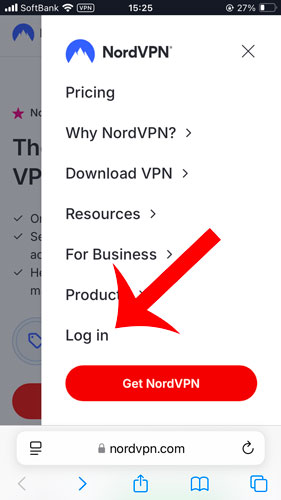
Open Billing Subscription
The NordVPN account screen will be displayed.
Click on “Billing information” → “Subscription” from the left menu.
Here, you can check details such as “Subscription,” “Auto-renewal,” “Expiration date,” and “Payment method.”

Via App Store
This is the method to check your subscription if you registered NordVPN through the App Store.
If you installed the app from the App Store and made an in-app purchase, you can check your subscription details from the Subscriptions section in the Settings app.
Go to Apple ID in the Settings App
Open the Settings app on your iPhone and tap the profile section at the top.
Go to Subscriptions
Once your Apple ID screen opens, tap on “Subscriptions.”
Check Your NordVPN Subscription
Select NordVPN, and you will be able to check details such as your subscription plan, next renewal date, and payment amount.
If you subscribe to NordVPN through in-app purchases on the App Store, be aware that the pricing is higher.
NordVPN follows a pricing structure where the longer the subscription period, the higher the discount.
However, with in-app purchases, only the 1-year plan is available, and it is set at a higher price.
By subscribing through the NordVPN official website, you can choose the more discounted 2-year plan.
Additionally, you can request a full refund within 30 days if needed.
Via Google Play
This is the method to check your subscription if you registered NordVPN through Google Play.
If you installed the app from Google Play and made an in-app purchase, you can check your subscription details from the “Subscriptions” section in the Google Play Store app.
Open Google Play Store
Launch the Google Play Store app, then tap the profile icon in the top right corner, followed by “Payments & Subscriptions.”
Check Your NordVPN Subscription
Tap on “Subscriptions”, then select NordVPN to view your subscription plan, next renewal date, and payment details.
Key Points to Check in Your NordVPN Subscription
One of the most important points to check in your NordVPN subscription details is the auto-renewal setting.
If auto-renewal is enabled, your subscription will automatically renew for the same period once your current plan expires.
For example, if you originally subscribed to the 2-year plan, it will automatically renew as a 1-year plan.
Additionally, when auto-renewal occurs, the initial high discount applied to your first subscription will no longer be available, so be cautious.
Moreover, subscriptions renewed via auto-renewal are not eligible for NordVPN’s 30-day money-back guarantee.
If you’re unsure whether you want to continue using NordVPN, it’s recommended to turn off auto-renewal in advance.
Conclusion
In this guide, we provided a detailed explanation of how to check your NordVPN subscription details.
You can verify your subscription status by logging into your NordVPN account and navigating to the Billing → Subscription section.
However, if you subscribed via in-app purchases on a smartphone (App Store or Google Play), the method to check your subscription will be different. Be sure to use the appropriate platform to review your contract details.


You can also access the subscription confirmation screen from the PC version of the NordVPN app.
First, go to Settings by clicking the gear icon in the bottom left corner, then navigate to “Profile.”
Here, click on “Manage” under “Subscription” to check your subscription details.